1 Install VPN client on Windows Click to download>>
2 Set up the Microsoft Authenticator app (for dynamic token authentication)
2.1 Android users: Download and install the 'Authenticator' app from your app store.
2.2 On iOS: Find and install the Microsoft Authenticator app from the App Store. (Tip: Many download the wrong app initially, so confirm it's from Microsoft!
2.3 This token provides a one-time passcode (OTP) on your mobile, ensuring secure access when signing in
Users will be issued a QR code by the admin upon VPN account creation 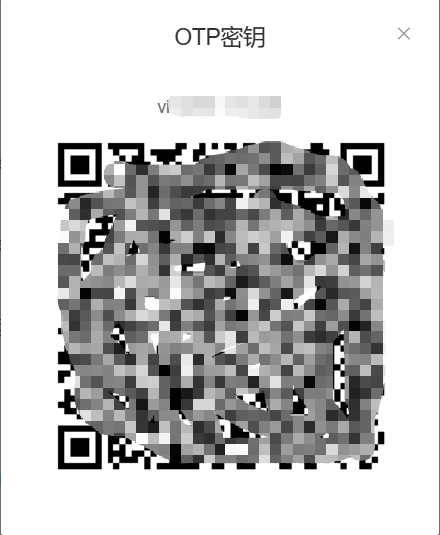
- In the Authenticator app, go to Add Account > Personal Account, then select Scan QR Code. (Ensure your camera permissions are enabled);
- Use the Authenticator app to scan the administrator-issued QR code;
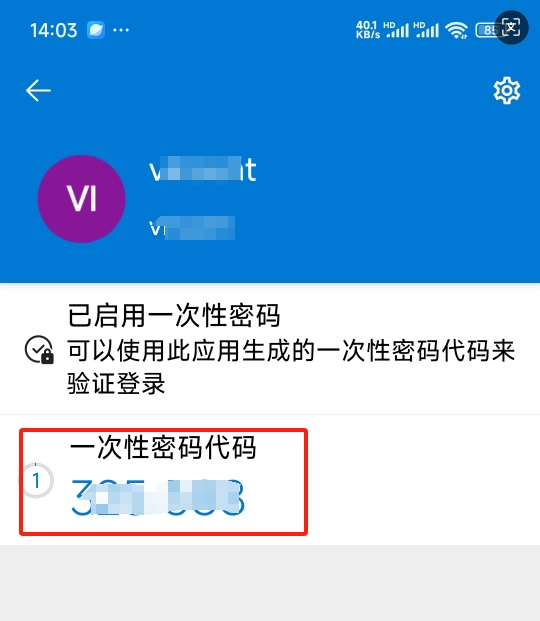
- Connect your authentication token to the VPN account for secure access;
- Once bound, find your VPN account in the app - tapping it reveals a rotating 6-digit security code。
3、Run AnyLink Secure Client
3.1 Run VPN client AnyLink Secure Client;
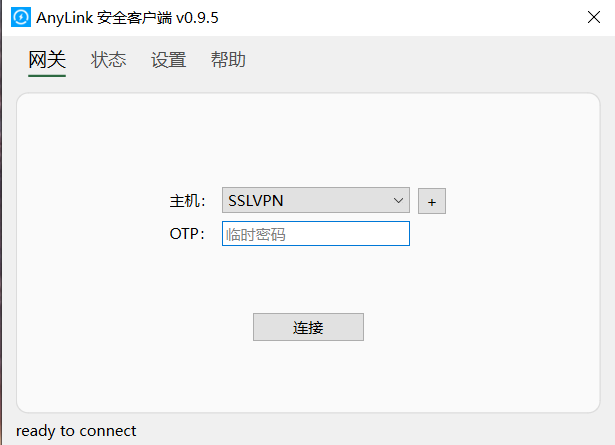
3.2 Click the+sign behind the host, fill in the information, and then save it;
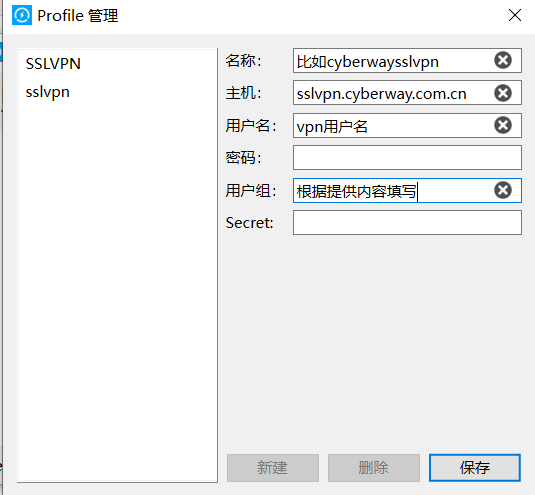
Configure the password to provide a PIN code.
OTP generates dynamic numbers for APP.
Note: PIN code is provided by CyberwayHosting.。